Create SSH profiles for your frequent connections on Ubuntu 18.04 using ssh_config

This is very useful if you connect to tons of servers via ssh and you need to keep record of them as profiles.

  • Edit/Create a file .ssh/config
  • Add entries in this manner:
Host blabla
User blablabla # or domain\blablabla if it's a domain user
HostName x.x.x.x

Host blabla2
User blablabla2
HostName x2.x2.x2.x2
  • Then all you need to do to connect to any of these specific connections using these specific users is to:
ssh blabla #To connect to server blabla with user blablabla

or

ssh blabla2 #To connect to server blabla2 with user blablabla2

For more info like advanced customization and features like using ssh keys, you can get help from the manual:

man ssh_config

Source:

https://nerderati.com/2011/03/17/simplify-your-life-with-an-ssh-config-file/

Posted in Linux | Tagged , , , , , | Leave a comment

Start Slack Minimized on Ubuntu 18.04

It might seem silly, but I just hate having to see the Slack Connection window every time I start my computer. I just wanted it to start minimized, no big deal!

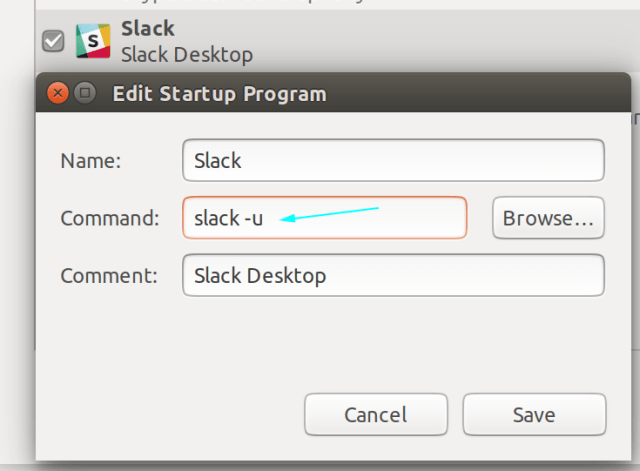
To start it minimized, just append -u to the command, e.g.

slack -u

screenshot

Enjoy!

Posted in Linux, Ubuntu | Tagged , , | 9 Comments

Add a custom resolution to your display using xrandr on Ubuntu 18.04

Just in case your monitor’s supported resolution is not properly detected or if you want a custom resolution to be used:

In this example, we will try to add 1368×768, with a refresh rate of 60

Run cvt to get the parameters of that resolution on your monitor (if it is supported):

cvt 1368 768 60

It gives you an output like the following

# 1368x768 59.88 Hz (CVT) hsync: 47.79 kHz; pclk: 85.25 MHz
Modeline "1368x768_60.00" 85.25 1368 1440 1576 1784 768 771 781 798 -hsync +vsync

Copy the text starting from the double quotes till the end of the full output and add it to the xrandr command to create a new mode, as follows:

xrandr --newmode "1368x768_60.00" 85.25 1368 1440 1576 1784 768 771 781 798 -hsync 
+vsync

Finally we add that mode to the existing list, using the line in double quotes in the previous output:

xrandr --addmode eDP-1 "1368x768_60.00"

To apply that resolution via command line:

xrandr --output HDMI-1 --mode 1366x768 --rate 60

Where HDMI-1 is the screen output you want to apply on. To know the names you have available and connected, just run the command:

xrandr --query

In my situation, I have the following ones connected DP-1, eDP-1 while HDMI-1, HDMI-2 and DP-2 as disconnected (not hooked to a screen).

To make that persistent, please follow the first link in the sources section.

Enjoy!

Sources:

Posted in Linux | Tagged , , , , | 1 Comment

Force remove an entry from Ubuntu Online Accounts

I was trying to delete an entry in my online accounts (since I restored Ubuntu 18.04 files over 17.10), and it wasn’t getting deleted.

The solution is to edit the following file:

~/.config/goa-1.0/accounts.conf

Then simply remove the entry you wish to delete.

Open Online Accounts again, and it’s gone!

Enjoy!

Source:

https://bugs.launchpad.net/ubuntu/+source/gcr/+bug/1044549/comments/14

Posted in Linux | Tagged , , | Leave a comment

Solve /boot getting 100% full issue on Ubuntu Servers

This is an issue affecting many Ubuntu servers. It basically happens when you enable automated security updates, multiple kernel packages get installed automatically, without removing the old ones, which gets /boot 100% full and the package manager is no longer able to function properly, showing a message complaining about dependency issues, e.g.

The following packages have unmet dependencies:
 linux-image-extra-4.4.0-64-generic : Depends: linux-image-4.4.0-64-generic but it is not going to be installed
 linux-image-generic : Depends: linux-image-4.4.0-64-generic but it is not going to be installed
                       Recommends: thermald but it is not going to be installed
 mongodb-org : Depends: mongodb-org-shell but it is not going to be installed
               Depends: mongodb-org-server but it is not going to be installed
               Depends: mongodb-org-mongos but it is not going to be installed
               Depends: mongodb-org-tools but it is not going to be installed
E: Unmet dependencies. Try 'apt-get -f install' with no packages (or specify a solution).

The following is a solution to this problem that I’ve tried numerous times, and works immediately, then I will explain how to prevent this from happening again in the future:

First step, you need to know which kernel is currently running using:

uname -a

Let’s assume this gives you the following kernel version as an output:

4.4.0-57-generic

Keep this version in mind, as what we are going to do is pretty dangerous:

cd /boot
sudo du -khs *

This will give you a long list of old kernel that you won’t be needing. Now we will manually delete the initrd.img-*** of old kernels prior to the currently-running version, e.g.

sudo rm -rf initrd.img-4.4.0-21-generic initrd.img-4.4.0-36-generic initrd.img-4.4.0-38-generic initrd.img-4.4.0-42-generic initrd.img-4.4.0-45-generic initrd.img-4.4.0-47-generic initrd.img-4.4.0-51-generic initrd.img-4.4.0-53-generic vmlinuz-4.4.0-21-generic vmlinuz-4.4.0-36-generic vmlinuz-4.4.0-38-generic vmlinuz-4.4.0-42-generic vmlinuz-4.4.0-45-generic vmlinuz-4.4.0-47-generic vmlinuz-4.4.0-51-generic vmlinuz-4.4.0-53-generic

This will free up some space, so that the package manager can breathe. Next:

sudo apt install -f

This will just fix part of the problem, as it will still complain about dependencies and /boot might get filled again, so that the next thing would be to:

sudo apt autoremove

This will remove all the dependencies for old kernel versions. You might need to run the last 2 commands a couple of times, now you got a clean /boot and the package manager is good.

To avoid this problem in the future, configure the unattended-upgrades package to automatically remove the old kernels along with their dependencies by editing the file:

sudo vi /etc/apt/apt.conf.d/50unattended-upgrades

Go to the following line, remove the comment and change “false” to “true”:

//Unattended-Upgrade::Remove-Unused-Dependencies "false";

so that it becomes like this:

Unattended-Upgrade::Remove-Unused-Dependencies "true";

Save and exit the file.

That’s it, Enjoy!


Posted in Linux | Tagged , , , , , | Leave a comment