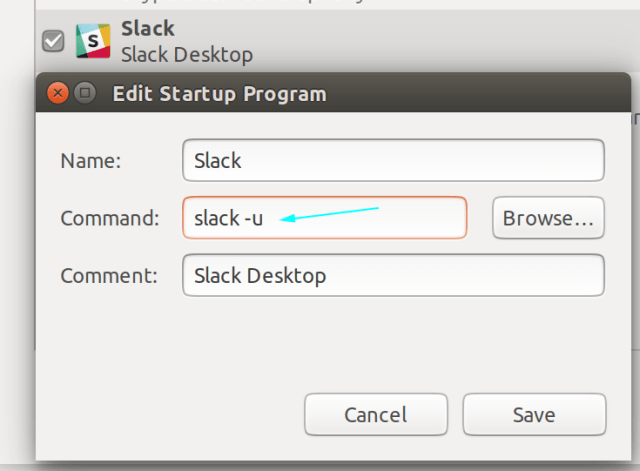
It might seem silly, but I just hate having to see the Slack Connection window every time I start my computer. I just wanted it to start minimized, no big deal!
To start it minimized, just append -u to the command, e.g.
slack -u

Enjoy!
It might seem silly, but I just hate having to see the Slack Connection window every time I start my computer. I just wanted it to start minimized, no big deal!
To start it minimized, just append -u to the command, e.g.
slack -u

Enjoy!
Just in case your monitor’s supported resolution is not properly detected or if you want a custom resolution to be used:
In this example, we will try to add 1368×768, with a refresh rate of 60
Run cvt to get the parameters of that resolution on your monitor (if it is supported):
cvt 1368 768 60
It gives you an output like the following
# 1368x768 59.88 Hz (CVT) hsync: 47.79 kHz; pclk: 85.25 MHz Modeline "1368x768_60.00" 85.25 1368 1440 1576 1784 768 771 781 798 -hsync +vsync
Copy the text starting from the double quotes till the end of the full output and add it to the xrandr command to create a new mode, as follows:
xrandr --newmode "1368x768_60.00" 85.25 1368 1440 1576 1784 768 771 781 798 -hsync +vsync
Finally we add that mode to the existing list, using the line in double quotes in the previous output:
xrandr --addmode eDP-1 "1368x768_60.00"
To apply that resolution via command line:
xrandr --output HDMI-1 --mode 1366x768 --rate 60
Where HDMI-1 is the screen output you want to apply on. To know the names you have available and connected, just run the command:
xrandr --query
In my situation, I have the following ones connected DP-1, eDP-1 while HDMI-1, HDMI-2 and DP-2 as disconnected (not hooked to a screen).
To make that persistent, please follow the first link in the sources section.
Enjoy!
Sources:
I was trying to delete an entry in my online accounts (since I restored Ubuntu 18.04 files over 17.10), and it wasn’t getting deleted.
The solution is to edit the following file:
~/.config/goa-1.0/accounts.conf
Then simply remove the entry you wish to delete.
Open Online Accounts again, and it’s gone!
Enjoy!
Source:
https://bugs.launchpad.net/ubuntu/+source/gcr/+bug/1044549/comments/14
This is an issue affecting many Ubuntu servers. It basically happens when you enable automated security updates, multiple kernel packages get installed automatically, without removing the old ones, which gets /boot 100% full and the package manager is no longer able to function properly, showing a message complaining about dependency issues, e.g.
The following packages have unmet dependencies: linux-image-extra-4.4.0-64-generic : Depends: linux-image-4.4.0-64-generic but it is not going to be installed linux-image-generic : Depends: linux-image-4.4.0-64-generic but it is not going to be installed Recommends: thermald but it is not going to be installed mongodb-org : Depends: mongodb-org-shell but it is not going to be installed Depends: mongodb-org-server but it is not going to be installed Depends: mongodb-org-mongos but it is not going to be installed Depends: mongodb-org-tools but it is not going to be installed E: Unmet dependencies. Try 'apt-get -f install' with no packages (or specify a solution).
The following is a solution to this problem that I’ve tried numerous times, and works immediately, then I will explain how to prevent this from happening again in the future:
First step, you need to know which kernel is currently running using:
uname -a
Let’s assume this gives you the following kernel version as an output:
4.4.0-57-generic
Keep this version in mind, as what we are going to do is pretty dangerous:
cd /boot sudo du -khs *
This will give you a long list of old kernel that you won’t be needing. Now we will manually delete the initrd.img-*** of old kernels prior to the currently-running version, e.g.
sudo rm -rf initrd.img-4.4.0-21-generic initrd.img-4.4.0-36-generic initrd.img-4.4.0-38-generic initrd.img-4.4.0-42-generic initrd.img-4.4.0-45-generic initrd.img-4.4.0-47-generic initrd.img-4.4.0-51-generic initrd.img-4.4.0-53-generic vmlinuz-4.4.0-21-generic vmlinuz-4.4.0-36-generic vmlinuz-4.4.0-38-generic vmlinuz-4.4.0-42-generic vmlinuz-4.4.0-45-generic vmlinuz-4.4.0-47-generic vmlinuz-4.4.0-51-generic vmlinuz-4.4.0-53-generic
This will free up some space, so that the package manager can breathe. Next:
sudo apt install -f
This will just fix part of the problem, as it will still complain about dependencies and /boot might get filled again, so that the next thing would be to:
sudo apt autoremove
This will remove all the dependencies for old kernel versions. You might need to run the last 2 commands a couple of times, now you got a clean /boot and the package manager is good.
To avoid this problem in the future, configure the unattended-upgrades package to automatically remove the old kernels along with their dependencies by editing the file:
sudo vi /etc/apt/apt.conf.d/50unattended-upgrades
Go to the following line, remove the comment and change “false” to “true”:
//Unattended-Upgrade::Remove-Unused-Dependencies "false";
so that it becomes like this:
Unattended-Upgrade::Remove-Unused-Dependencies "true";
Save and exit the file.
That’s it, Enjoy!
Ctrl+Alt+t is the keyboard shortcut to open a terminal in Ubuntu. By default, it opens an ‘x-terminal-emulator’ terminal.
I wanted to change that to use my favorite terminal emulator, which is ‘terminator’
To do that:
gsettings set org.gnome.desktop.default-applications.terminal exec 'terminator'
or:
sudo update-alternatives --config x-terminal-emulator
That’s it!
Enjoy!
Source:
https://askubuntu.com/questions/70540/how-can-i-set-default-terminal-used-in-unity