
The trick worked on my wireless router at home :), check the screenshots below:
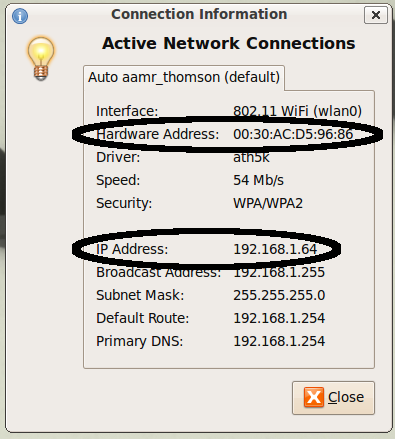
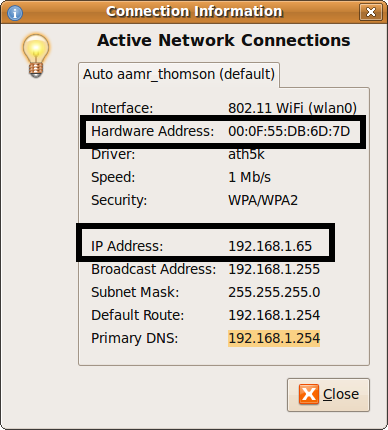
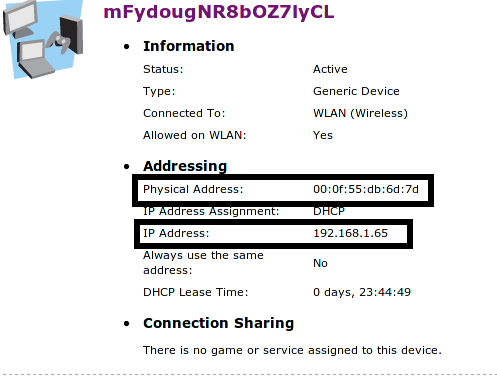
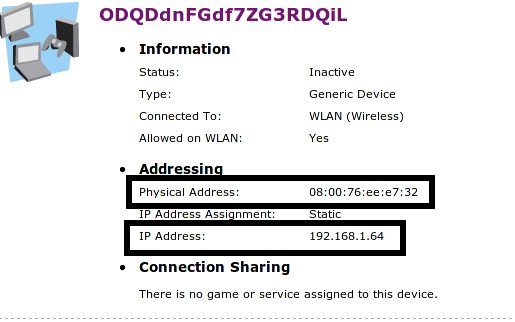
The trick worked on my wireless router at home :), check the screenshots below:
I know it sounds a bit stupid, and it really is, but the following shows you how to draw that stupid thing:
That’s it! simple, isn’t it?
AT LAST I DID IT!!
After installing the new version of Lotus Notes, it added a stupid item to my nautilus context menu labeled “Send to Lotus Notes”, this item crashes nautilus whenever it’s clicked!! and it was bothering me a LOT! I googled and googled and googled and found nothing at all! Here is the bug description “http://www-10.lotus.com/ldd/nd85forum.nsf/c6054cf2ea498b338525733900559bd1/7ab83251d1d068db852575fb0036104b?OpenDocument” and here is what I did to remove that item:
Since gimp is considered somehow a heavy-weight program, at least for basic image editing, I searched in Ubuntu repositories for a quicker alternative and I found “Mirage”, it’s very simple and contains nice features such as:
* Slideshow and fullscreen mode
* Rotating, zooming, flipping, resizing, and cropping
* Screenshot
I used it primarily for image cropping as I had to open gimp for every image I wanted to crop and that was bothering me a lot as it takes some time to startup.
I wished to have that feature since a very long time ago and at last I found a solution which was very simple! The solution idea is simple: Don’t use your base OS to connect to the VPN, use a virtual machine instead, for example I use Virtualbox as my virtualization software and I have Ubuntu 9.04 as my base OS and Ubuntu 9.10 as my guest OS, I installed the Cisco-compatible vpnc and network-manager-vpnc packages, and then connected to the VPN on the guest OS and everything worked like a charm! On my base OS I can do everything I want as if I’m not connected to any VPN and my guest OS connects to the VPN and has access to all network resources there, simple, isn’t it 🙂 ?
Update: I did the same with a Windows XP guest and Cisco VPN client and it worked fine as expected.


 Just Some Techie Notes!