
dconf reset -f /
Sources:
https://www.omgubuntu.co.uk/2017/10/how-to-reset-ubuntu-desktop-to-default
dconf reset -f /
Sources:
https://www.omgubuntu.co.uk/2017/10/how-to-reset-ubuntu-desktop-to-default
This is if you need to know which server gave you your dynamic IP:
cat /var/lib/dhcp/dhclient.leases
That’s it, Enjoy!
This was tested on Docker version 18.09.4, build d14af54266, it includes ALL docker data.
Just edit/create a file inside /etc/docker named daemon.json and add the following:
{
  "data-root": "/new_location"
}
then simply restart docker:
sudo service docker restart
Source:
https://docs.docker.com/engine/reference/commandline/dockerd/
Here we will send a batch of files inside a directory to the default printer in Ubuntu.
First of all, you’d better define a default printer in your system by going to Printers and then select Use Printer by Default:
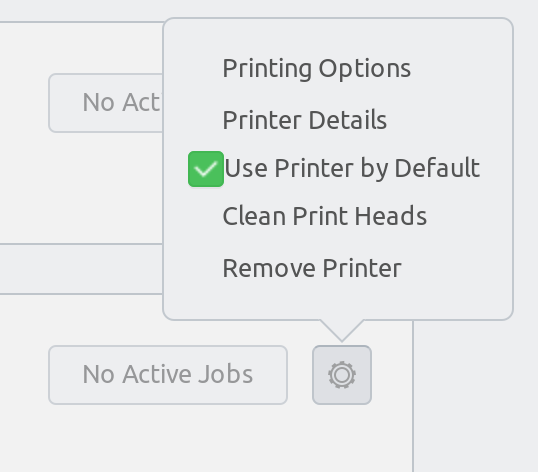
Next, just invoke the lpr command, e.g.
lpr *.pdf
That’s it, Enjoy!
Source: https://makandracards.com/makandra/24202-linux-how-to-print-pdf-files-from-the-command-line
If your laptop doesn’t have a working switch for turning on/off your touchpad, then this post is for you.
Create a script called disenable_touchpad.sh and add the following code to it:
!/bin/bash

 state=$( gsettings get org.gnome.desktop.peripherals.touchpad send-events )

 if [ "$state" == "'enabled'" ];then
   gsettings set org.gnome.desktop.peripherals.touchpad send-events 'disabled' \
         && notify-send -i touchpad-disabled-symbolic "Touchpad" "Disabled"
 else
   gsettings set org.gnome.desktop.peripherals.touchpad send-events 'enabled' \
         && notify-send -i input-touchpad-symbolic "Touchpad" "Enabled"
 fi
Mark the script as executable and move it to /usr/bin:
chmod +x disenable_touchpad.sh
sudo mv disenable_touchpad.sh /usr/bin/
Open Settings -> Keyboard, scroll to the bottom and press the + sign to assign a new keyboard shortcut:

Tested on Ubuntu 18.10, should work on any gnome-shell versions anyway!
Enjoy!
Sources: https://askubuntu.com/questions/844151/enable-disable-touchpad/1109515#1109515


 Just Some Techie Notes!