
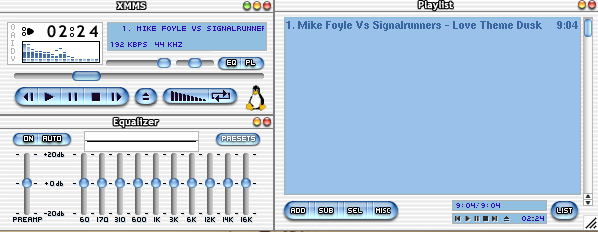
Before now, I was using Totem Movie Player to play my MP3 collections, but I didn’t feel it was as convenient as Winamp or Windows Media Player, and yesterday I saw one of my friends running what I thought at first Winamp on Linux, but it was XMMS, a great audio player for Linux, and is available for nearly all Linux distros. Get it using sudo apt-get install xmms, Happy MP3s!
Authors
-
Join me in Slack!
-
Join 2,075 other subscribers
Tags
- adblock plus
- aix
- apt
- apt-get
- Bash
- bionic-beaver
- Bluetooth
- Compile
- core
- Crack
- data
- db
- debug
- Desktop
- docker
- encryption
- extensions
- ffmpeg
- files
- filesystem
- find
- Firefox
- Gnome
- gnome-shell
- google-chrome
- grep
- hostname
- img
- install
- ip
- iso
- Java
- kde
- kvm
- Leadership
- Linux
- linuxmint
- Live USB
- Lucid
- lvm
- Management
- mint
- mount
- MySQL
- network
- Network Manager
- OpenOffice
- Oracle
- password
- printer
- python
- qemu
- Redhat
- reset
- rm
- sed
- server
- siebel
- SQL
- sqlplus
- srvrmgr
- ssh
- swap
- terminal
- Ubuntu
- Ubuntu Hardy
- Ubuntu Jaunty
- Uncategorized
- Unix
- VirtualBox
- vmware
- Windows
- xenial
- xserver
- Xubuntu
Archives
- August 2026
- June 2026
- May 2026
- February 2026
- April 2025
- March 2025
- February 2025
- January 2025
- December 2024
- November 2024
- October 2024
- August 2024
- April 2024
- February 2024
- January 2024
- November 2023
- October 2023
- September 2023
- April 2023
- January 2023
- October 2022
- July 2022
- December 2021
- October 2021
- July 2021
- April 2021
- March 2021
- October 2020
- May 2020
- April 2020
- March 2020
- February 2020
- January 2020
- December 2019
- November 2019
- October 2019
- June 2019
- April 2019
- February 2019
- January 2019
- December 2018
- November 2018
- October 2018
- September 2018
- May 2018
- April 2018
- March 2018
- February 2018
- January 2018
- December 2017
- November 2017
- September 2017
- August 2017
- July 2017
- May 2017
- April 2017
- March 2017
- February 2017
- January 2017
- October 2016
- September 2016
- August 2016
- July 2016
- April 2016
- March 2016
- November 2015
- September 2015
- August 2015
- June 2015
- February 2015
- December 2014
- November 2014
- October 2014
- September 2014
- June 2014
- May 2014
- February 2014
- January 2014
- September 2013
- August 2013
- July 2013
- May 2013
- April 2013
- March 2013
- February 2013
- January 2013
- December 2012
- November 2012
- October 2012
- September 2012
- August 2012
- July 2012
- January 2012
- December 2011
- November 2011
- October 2011
- September 2011
- June 2011
- May 2011
- April 2011
- March 2011
- January 2011
- December 2010
- November 2010
- October 2010
- September 2010
- August 2010
- June 2010
- May 2010
- April 2010
- March 2010
- February 2010
- January 2010
- December 2009
- October 2009
- September 2009
- August 2009
- July 2009
- June 2009
- May 2009
- April 2009
- March 2009
- February 2009
- January 2009
- December 2008
- November 2008
- June 2008
- May 2008
- April 2008
- March 2008
- February 2008
- January 2008
- November 2007


