
Well, this issue has been bothering me for a while. If you have Kali Linux Desktop on a Virtual Machine (VMware Workstation or VirtualBox for example), and you have a low-resolution screen, you won’t feel that much, however, if you have a 2K+ screen, you will see these tiny icons and text:

Some would say just use the hidpi mode, but it becomes too big! The best solution I found so far is to install the gnome-desktop. Note: Before you do that, you might need to change the line in “/etc/apt/sources.list” that points to “kali-rolling” to” kali-last-snapshot” before running the below command, for a more stable Kali experience (Kali overall, not just the desktop):
sudo apt update && sudo apt install kali-desktop-gnome
Once prompted to select a display manager, choose gdm3.
After rebooting, login normally, open the Tweaks App (Not Kali Tweaks), go to Fonts, then modify the Scaling Factor to your preference. It will be much more convenient and comfortable for your eyes:
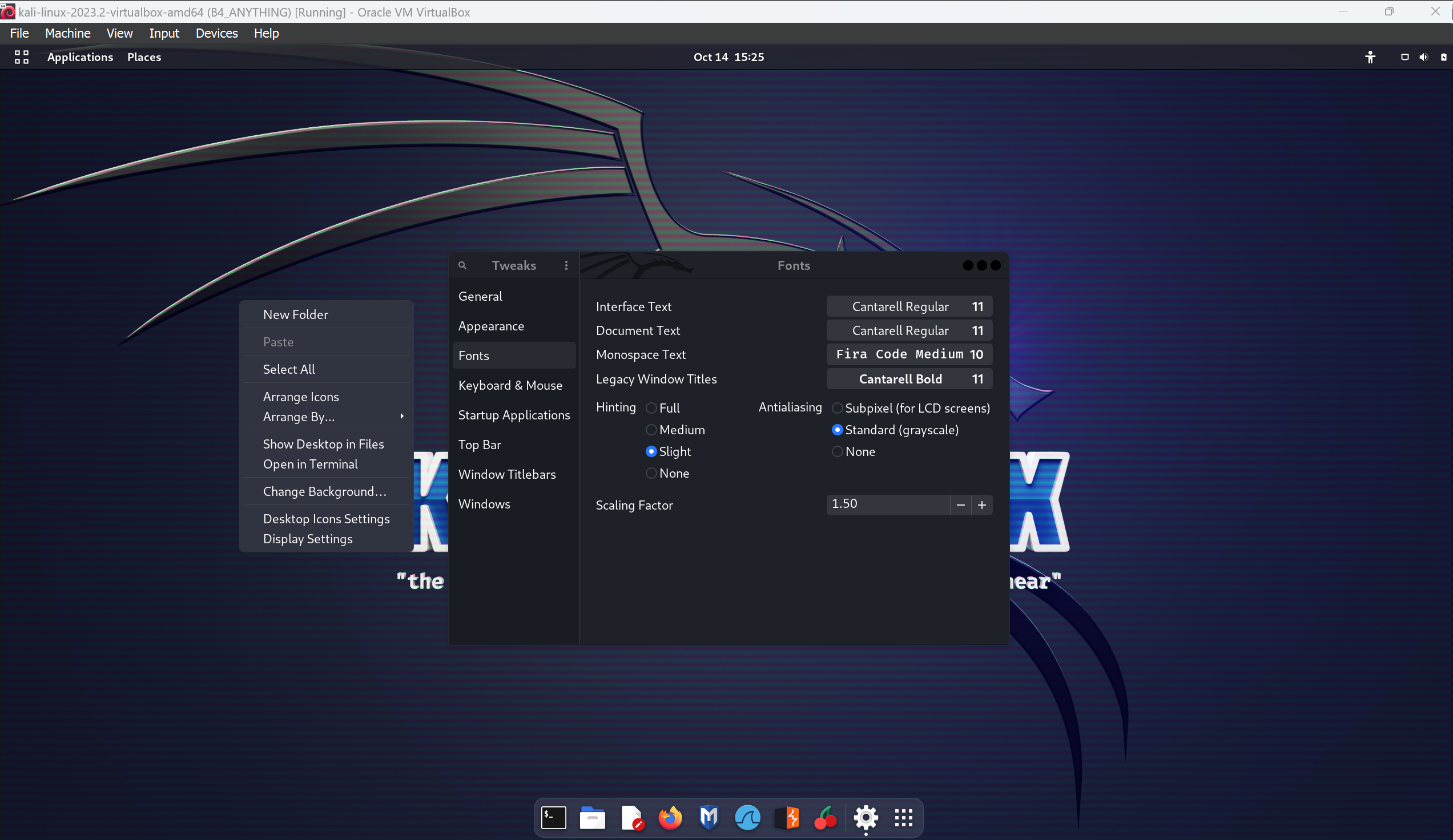
That’s it, Enjoy!


 Just Some Techie Notes!