Bluetooth and Wireless Ad-hoc Networks Problems Solved

Now and finally I can say that my Ubuntu setup is PERFECT:

  1. Easily connect to any wirelss network; infrastructure and ad-hoc, thanks to ndiswrapper 🙂
  2. Send and receive bluetooth files as well as browse any bluetooth device using Nautilus (latest bluez-utils package from Debian)
  3. All laptop shortcut keys work without any problems out of the box.
  4. Great performance and memory usage.
Tagged , , | Leave a comment

Firefox Add-ons: Video DownloadHelper

I used to download videos from YouTube and similar sites using the plugin provided by Real Player 11, but I couldn’t use it on Linux, and so, I searched for another tool, and what a surprise :), I found a very nice one that’s availabe as a Firefox add-on, and it works like a charm:

https://addons.mozilla.org/en-US/firefox/addon/3006

Enjoy downloading your favorite videos :), now I feel really tired and need a nap, see you 🙂

Tagged | Leave a comment

Ubuntu Tweak

A great tool from GetDeb.net that allows you to easily configure all hidden features of your Ubuntu OS:
http://getdeb.net/app/Ubuntu+Tweak
It’s a must-try tool! And by the way, this tool allowed me to easily manage my processor frequency in one of my old blog entries, Enjoy!

Tagged | Leave a comment

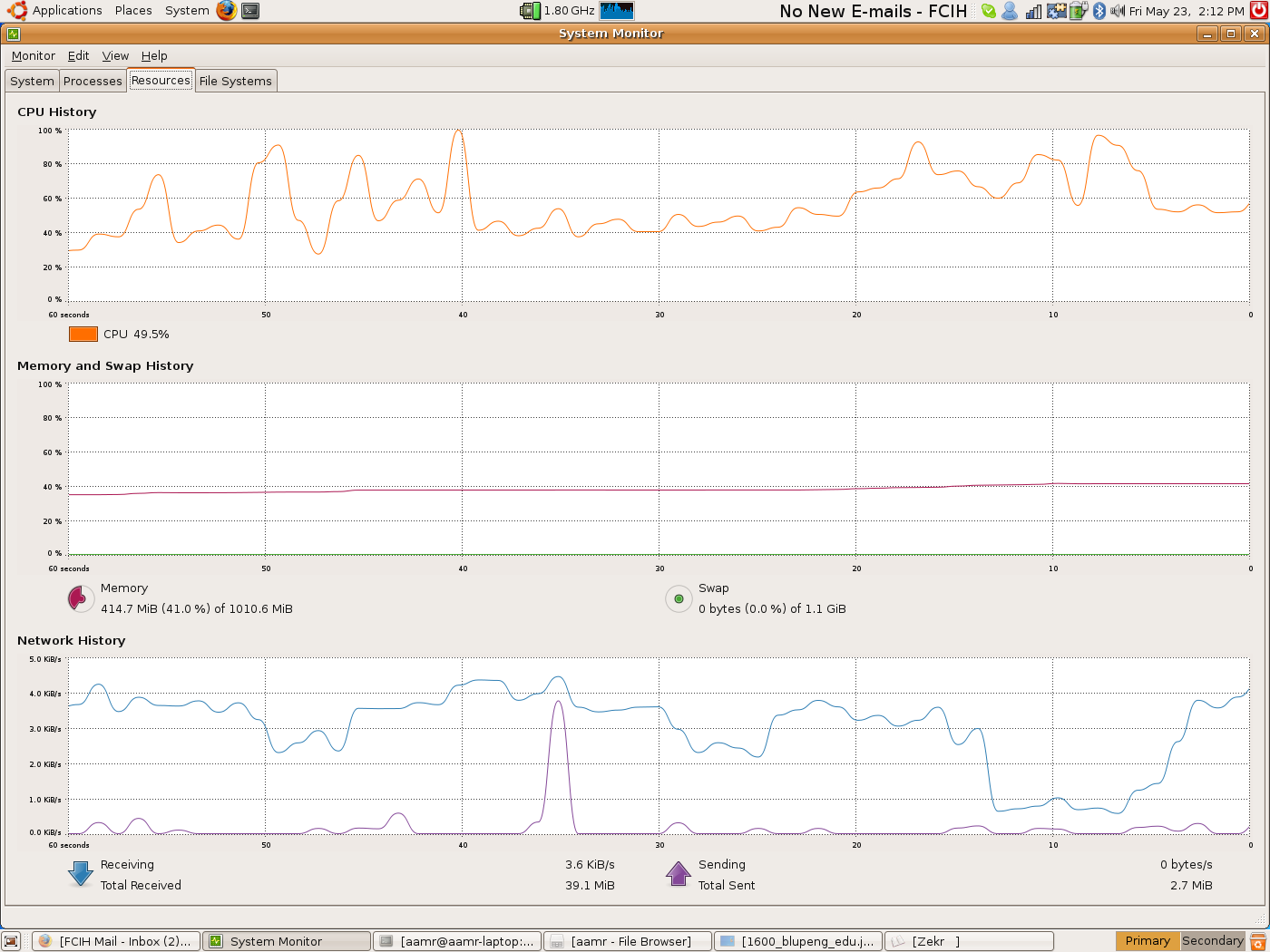
Ubuntu Memory Efficiency, can any OS be better than that??

Applications Loaded:

  1. Firefox 3
  2. Skype 2
  3. Emesene 1
  4. GDesklets
  5. Gnome Terminal
  6. Zekr (Java-based application)

Memory Usage:

  1. 415 MB RAM
  2. 0 Swap

No Comment!!! I can’t dream of anything better than that!

Tagged | Leave a comment

Ubuntu CPU Performance Booster

I discovered the following today while surfing the net and reading multiple articles about Ubuntu:

Ubuntu automatically changes the CPU frequency of the system (on systems supporting this feature only of course such as Pentium M), and it is set to a default value of “ondemand” which means that the CPU frequency is changed dynamically according to the running applications demand. I discovered that this slows the system down much – as well as preserve energy which is important on laptops only – and reduce your satisfaction with the system.

To manually change this setting, you should:

  1. Add the “CPU Frequency Scaling Monitor” applet on any of your panels
  2. open the terminal and type “sudo dpkg-reconfigure gnome-applets” to allow manual configuration of the CPU frequency.
  3. Left-click the “CPU Frequency Scaling Monitor” applet and choose the highest frequency (don’t worry :), the displayed frequencies are only those supported by your processor).
  4. You can do the same using the “cpufreq-selector” command from the command line.
  5. Enjoy the new performance :).

I just have one problem with this; which is that I couldn’t set this option to always on, and I have to change it after every reboot (I don’t have to repeat steps 1 and 2 of course, only step number 3. If you know a solution to this, please let me know, waiting for your comments!

Tagged | Leave a comment